Sign In With Your Phone
A computer shows a code, your phone scans it, and your account and messages come over. And how to join the app test.
Setting Gryt up on a new computer used to mean signing in, joining your servers again and starting with empty DMs. If Gryt is already on your phone, that's one scan now.
Scan the code
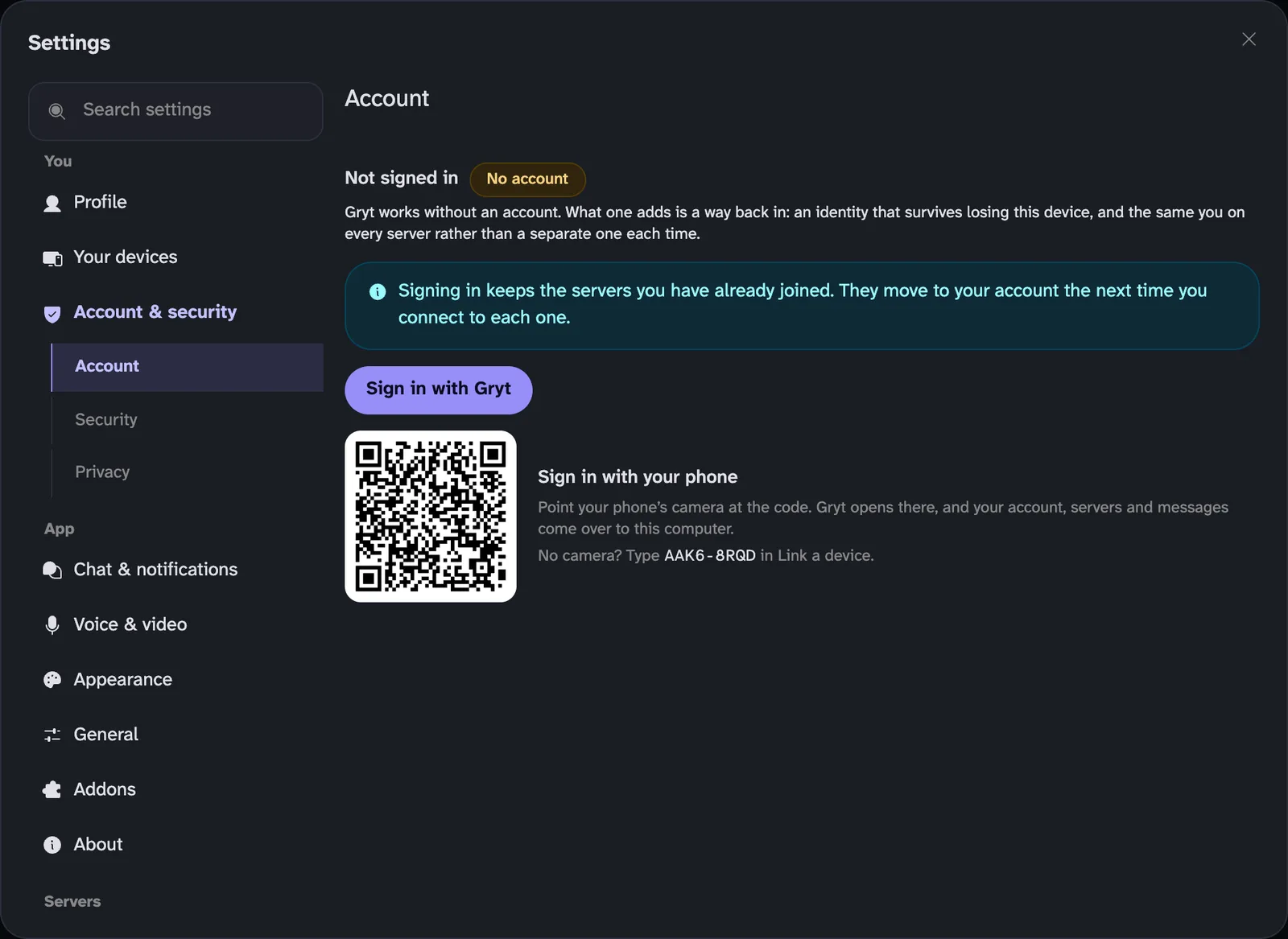
Open Settings → Account on the computer. If you're not signed in, there's a code under Sign in with your phone.
Gryt's Settings, Account page, not signed in, with a Sign in with Gryt button and below it a QR code next to the text 'Sign in with your phone. Point your phone's camera at the code. Gryt opens there, and your account, servers and messages come over to this computer.' and a short code to type instead
Point your phone's camera at it and Gryt opens on the phone. You can also scan it from Scan a code on the You tab. Both devices then show a few small pictures. Check they're the same on both, approve on the phone, and the computer gets your account, every server you're in and your old messages. You don't have to join a server first. If scanning doesn't work, the computer also shows a short code you can type into Link a device on the phone.
It works the other way round too. Settings → Your devices has Link a device for adding another one, and Link this device for setting up the one you're on. The phone has both in its settings too.
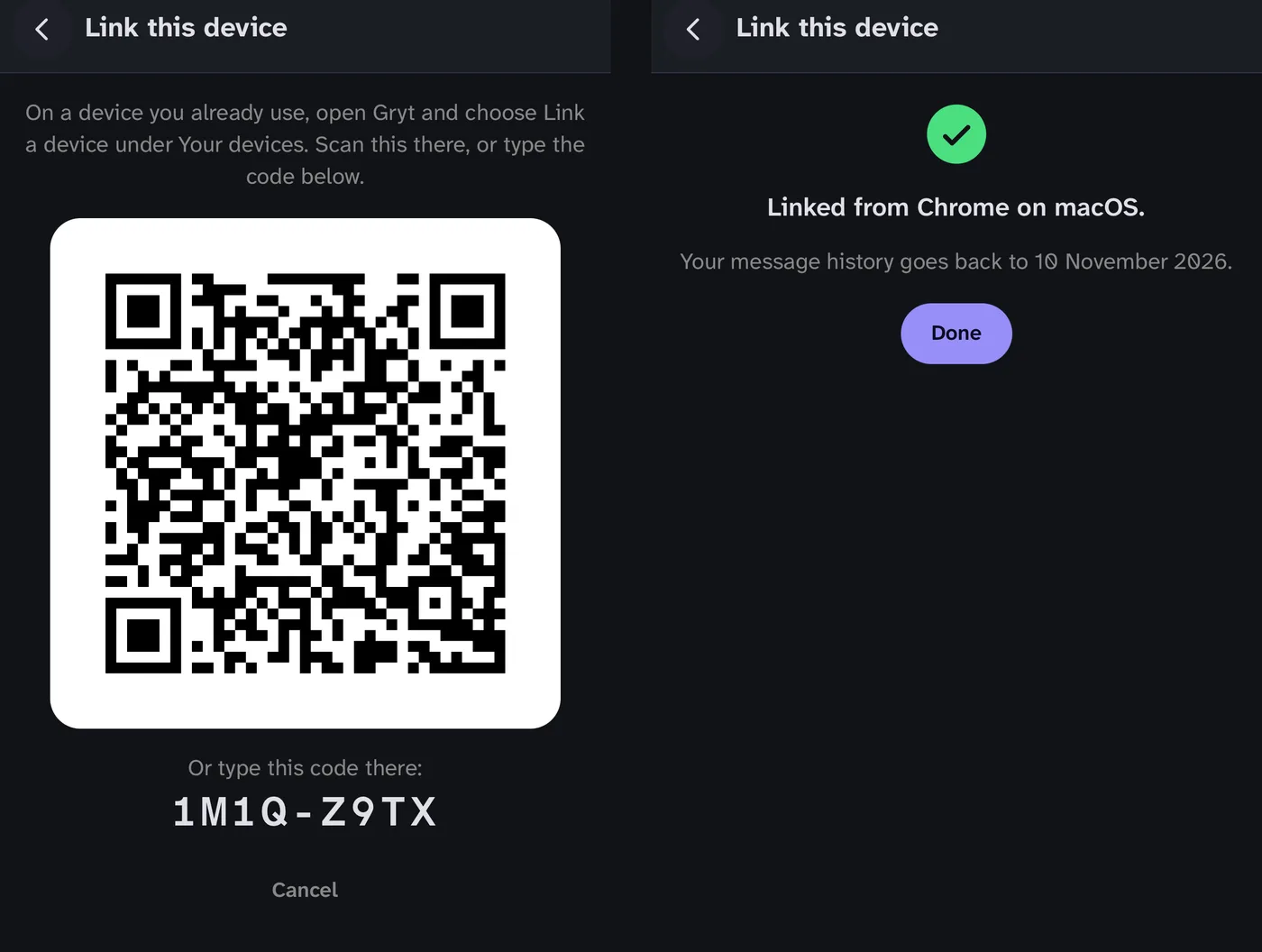 Two phone screens. Left, Link this device shows a QR code and the code 1M1Q-Z9TX to type on a device you already use. Right, after linking, a green tick and 'Linked from Chrome on macOS. Your message history goes back to 10 November 2026.' above a Done button
While it links, both sides list each step from Approve to Done. Keep Gryt open on both until it says Done. The screen stays on until then, so the phone won't lock halfway.
Where your old messages go
The link itself goes through Gryt's linking service: your keys, your account and the list of your servers. It's sealed so the service can't read it, and it's small. The pictures aren't sent anywhere. Each device works them out on its own, which is why matching pictures mean nobody got in between.
Your old messages don't go through it. Since 1.15.7 they wait for the new device on one of your own servers, locked so that server can't read them either. The new device fetches them, and the server deletes them as they're picked up, or after an hour at the latest.
Whoever runs a server can turn this off in the server's settings, under Linking a new device. If none of your servers will carry your messages, both devices tell you that they stay on the one you linked from, and the rest of the link still goes through.
1.15.8 fixed one thing here. Linking a phone from a computer, or a computer from a phone, said your messages came across, and then they didn't show in your chats. They do now. Between two computers it always worked.
Getting the phone app
The phone app is still in testing, so it isn't in the App Store or on Google Play for everyone yet. Anyone can join the test.
iPhone
- Open the TestFlight invite on your iPhone.
- If you don't have TestFlight, it asks you to install it from the App Store first. Then open the invite again.
- Tap Install. New builds show up in TestFlight.
Android
- Join the gryt-testers group with the Google account you use on your phone. Anyone can join.
- Opt in to the test with the same account.
- Install Gryt from Google Play.
The same steps are on the download page. Then sign in on the phone, or start fresh and join a server, and you're ready to scan.
Android testers help the most right now. Google wants twelve people on the test for fourteen days in a row before Gryt can go on Google Play for everyone.
If something breaks, tell me on our Gryt server or with Give feedback in the app's settings.